By Waheed Qureshi | Last updated: October 16, 2026
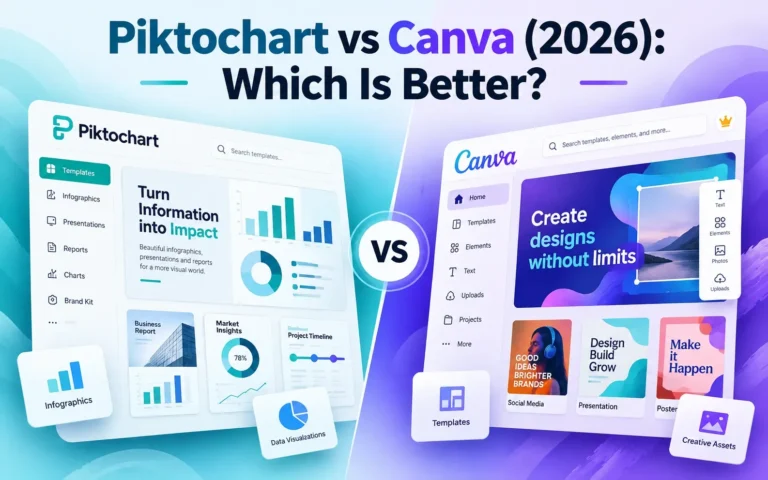
Short answer: After testing Piktochart and Canva with the same educational infographic prompt, I preferred Canva. Its AI-generated design looked better to me, editing felt easier, and its free download options offered more flexibility. Piktochart also performed well with its dedicated infographic generator, but I encountered a few limitations.
Both platforms help people create professional visuals without advanced design skills. However, they offer different approaches to infographic creation, editing, and exporting.
In this Piktochart vs Canva comparison, I’ll share my actual testing experience, compare their features and pricing, and explain which tool may suit your needs.
Piktochart vs Canva: Quick Comparison
| Feature | Piktochart | Canva |
|---|---|---|
| Main focus | Infographics and visual communication | General graphic design |
| AI creation | Dedicated AI infographic generator | Conversational AI design generation |
| Ease of use | Beginner-friendly | Beginner-friendly; my preferred workflow |
| AI output in my test | Good, but shortened the title | I preferred its generated design |
| Editing | Outline refinement, images, color palettes | Convenient editing workflow |
| Free downloads observed | Two PNG downloads | PNG, JPG, and PDF options |
| Templates | Infographics, presentations, and more | Wide range of design categories |
| My overall choice | Useful alternative | Canva |
These results reflect my tested workflows, not every feature available on either platform.
What Are Piktochart and Canva?
What Is Piktochart?
Piktochart is an online visual communication platform that helps users turn information into graphics. It provides tools for infographics, presentations, reports, and other visual content.
Its AI infographic generator creates a starting design from a topic and additional instructions. This can help students, educators, and professionals who want to present information visually without building everything from scratch.
What Is Canva?
Canva is an online graphic design platform for creating infographics, presentations, banners, posters, social media graphics, and other visual materials.
Canva offers a broader design workspace and AI-assisted creation tools. During my testing, I used Canva AI to generate a complete educational design from written instructions, then explored its editing and download options.
How I Tested Piktochart and Canva
I used the same topic and instructions to compare the AI infographic creation process in both platforms.
Test topic: 5 Practical Ways Students Can Use AI Responsibly
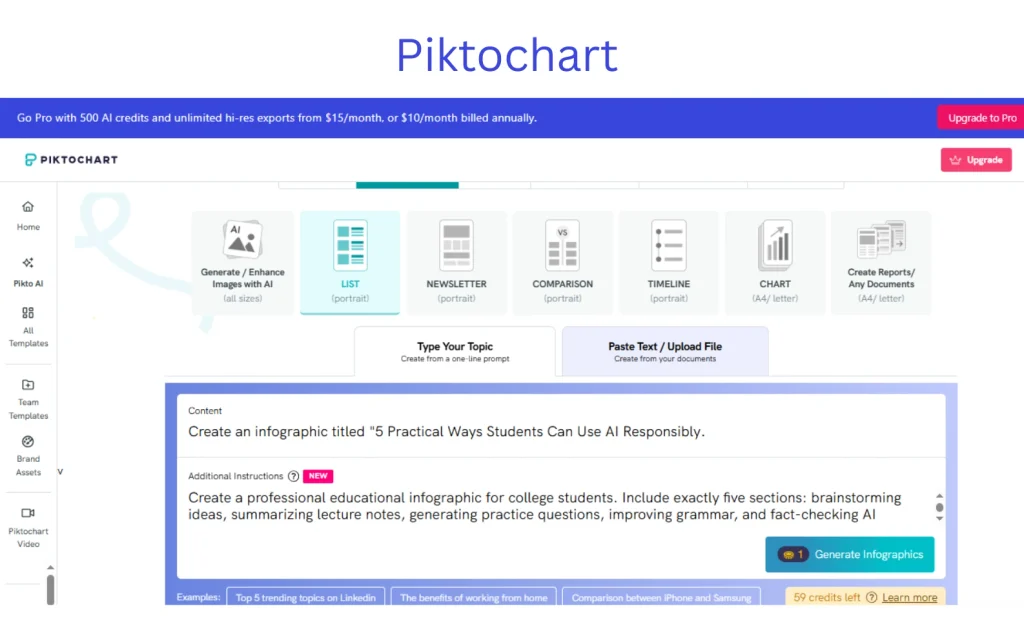
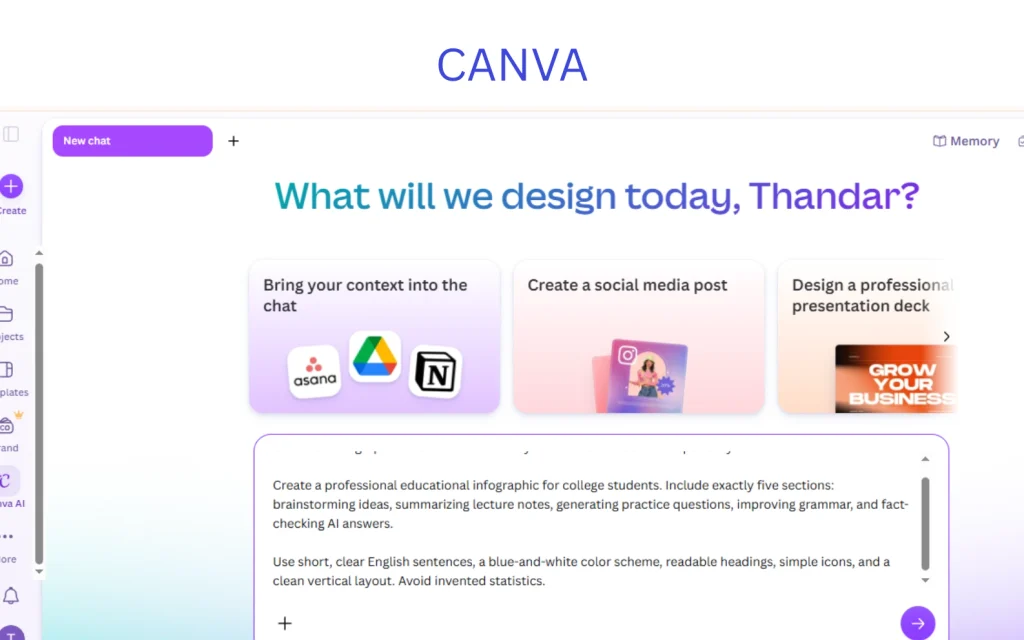
I asked both tools to create a professional educational infographic for college students. The design needed five sections: brainstorming ideas, summarizing lecture notes, generating practice questions, improving grammar, and fact-checking AI answers.
I also requested short English sentences, a blue-and-white color scheme, readable headings, simple icons, and a clean vertical layout. I specifically asked the tools to avoid invented statistics.
I evaluated the generated designs, editing experience, interface, and available download options. I did not measure exact generation times or test every premium feature.
For more details about how I evaluate AI tools, read our hands-on testing process.
1: Piktochart AI prompt
2: Canva AI prompt
My Experience With Piktochart AI
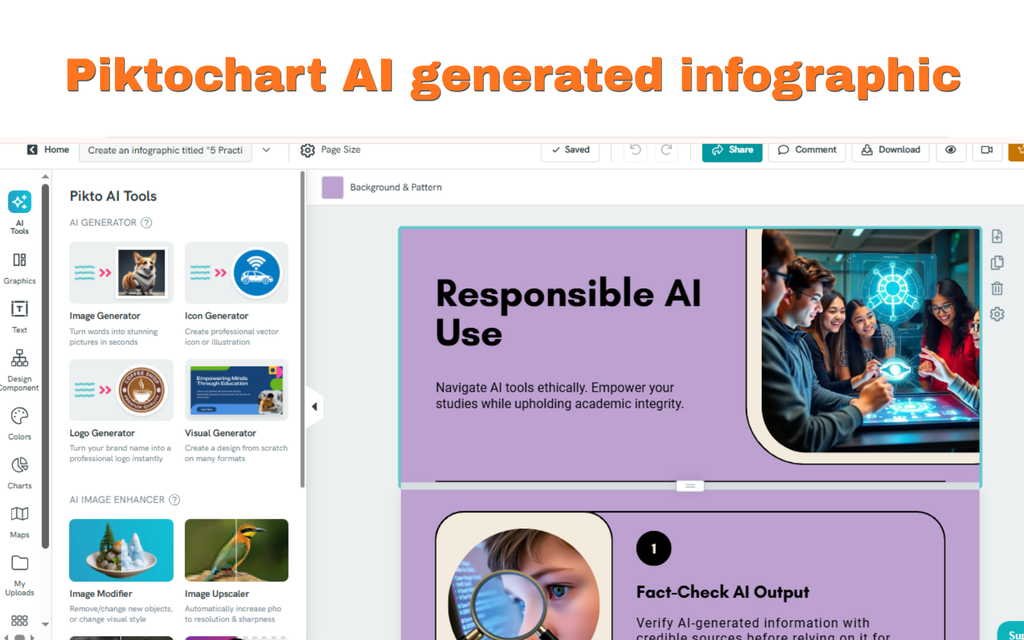
I signed in to Piktochart using Google and found its dashboard clean and easy to understand. I selected Create AI Visual, chose the portrait List format, and entered my topic and instructions.
Piktochart generated an infographic within a few seconds. The design looked good, and the editor offered useful options, including Refine your outline, image selections, and color palettes.
However, Piktochart changed my requested title from “5 Practical Ways Students Can Use AI Responsibly” to “Students AI Use.” The shorter title did not follow my instructions exactly and needed correction before publishing.
This showed me why AI-generated designs still need a content review, even when the visual result looks professional.
My Experience With Canva AI
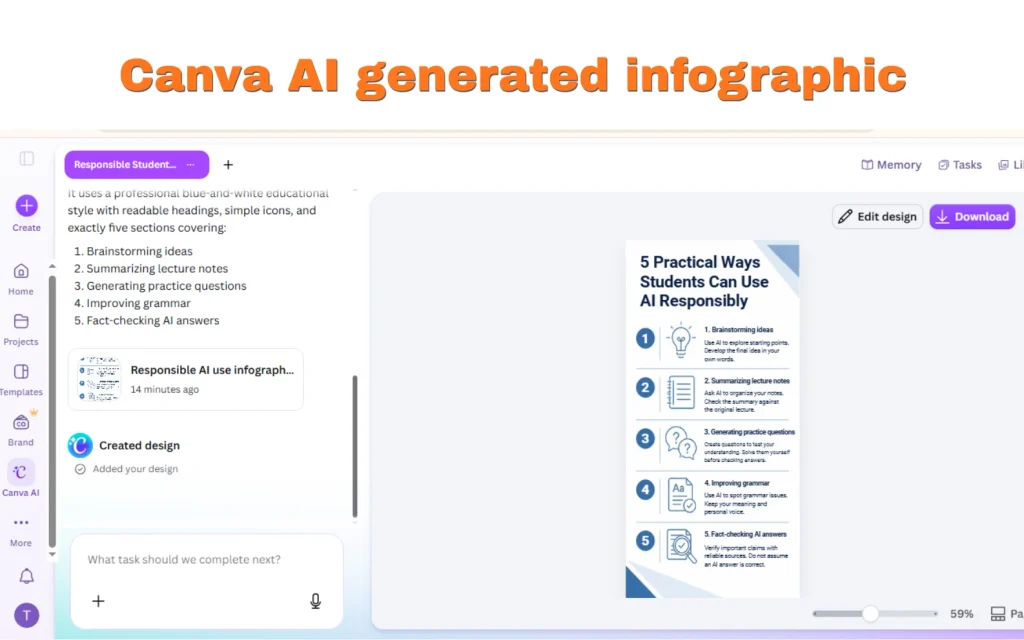
Canva made a stronger impression during my test. I entered the same educational topic and instructions into Canva AI, and it generated a complete design that I preferred over Piktochart’s output.
I also found Canva’s editing process convenient. I could navigate the design tools without difficulty, and creating or editing banners felt straightforward. I worked out the main workflow without a tutorial.
For my needs, Canva combined a more appealing AI result with an easier overall editing experience.
Piktochart vs Canva: Features Compared
AI Infographic Generator
Both platforms generated a design from written instructions, but their workflows were different. Piktochart provided a dedicated infographic generator where I selected the format before creating the visual.
Canva used a conversational AI interface. I described what I wanted, and the platform generated a design that I could continue editing.
My winner: Canva. I preferred its generated result and editing workflow. However, AI output can vary between prompts and attempts, so this result does not prove that Canva always produces better designs.
Infographic Templates and Design Options
Piktochart provides a focused infographic creation experience alongside other visual formats. Its dashboard offered direct access to infographic creation and presentations.
Canva displayed a broad selection of design categories, including presentations, posters, logos, and social media graphics. This makes it a practical option for users who regularly work on different types of content.
Both platforms offer infographic templates. However, access to individual templates and premium elements may depend on your plan.
Editing and Customization
Piktochart allowed me to explore outline refinement, image selections, and predefined color palettes. These controls can help users improve an AI-generated infographic without starting again.
I did not find a custom image upload option in the particular AI editing screen I tested. That does not mean Piktochart lacks image uploads elsewhere in its platform.
Canva felt more convenient for general editing. I could move through the design workflow easily and find the controls I needed.
My preference: Canva, based on the features I personally explored.
Sharing and Download Options
Piktochart’s free plan offered two PNG downloads during my test. Other export options appeared behind paid-plan restrictions.
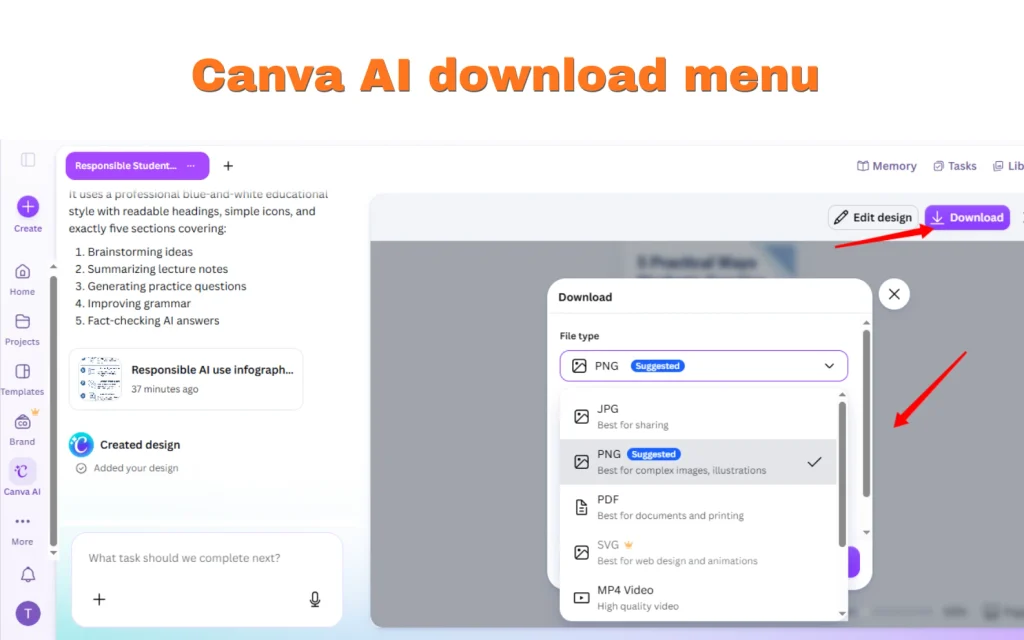
Canva provided PNG, JPG, and PDF options in my tested workflow. I could edit the design, select Share, and choose Download without a complicated process.
For someone who regularly needs different file formats, Canva’s free export options were more useful in my experience.
Some advanced Canva download settings and premium features still require payment. You can check the Canva Help Center for current instructions and restrictions.
What I Didn’t Test
I did not perform identical chart-building, advanced data visualization, presentation, or collaboration tests in both platforms. Therefore, I cannot fairly compare their performance in those areas.
If advanced charts or team collaboration are important to your work, test those features with a real project before purchasing a subscription.
Piktochart vs Canva Pricing: Free vs Paid Plans
Piktochart Pricing
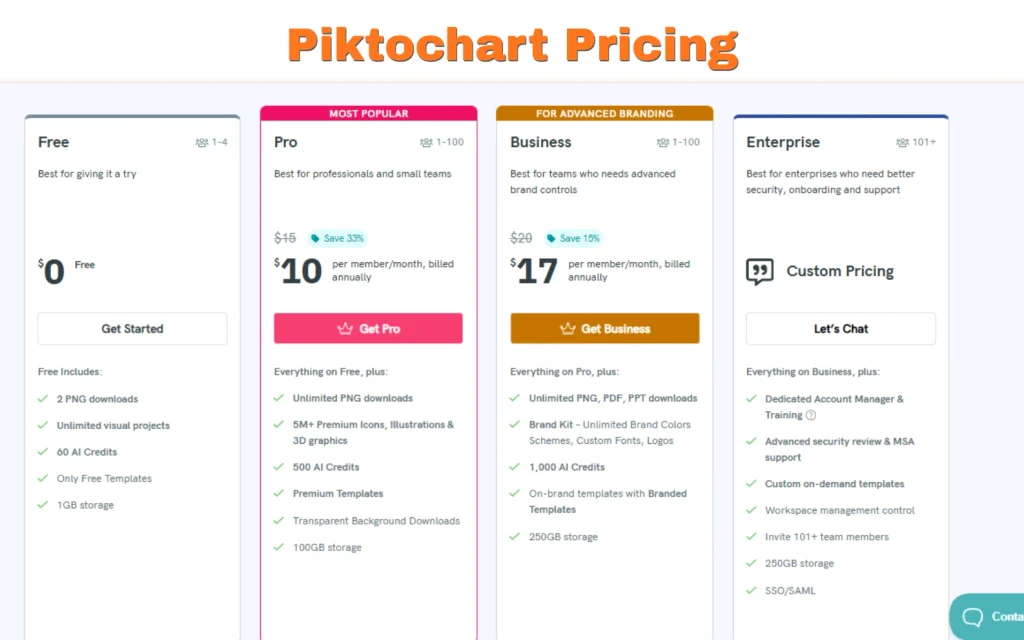
According to Piktochart’s official pricing page, the plans include:
| Plan | Monthly billing | Annual billing |
|---|---|---|
| Free | $0 | $0 |
| Pro | $15/member/month | $10/member/month |
| Business | $20/member/month | $17/member/month |
| Enterprise | Custom pricing | Custom pricing |
Piktochart’s Free plan includes 60 AI credits and two PNG downloads. Pro adds 500 AI credits, unlimited PNG downloads, and transparent-background downloads. Business includes 1,000 AI credits and PDF and PowerPoint exports.
The annual prices above represent monthly equivalents when billed annually. Prices are shown in USD and may vary by region or change over time.
Canva Pricing
| Canva Plan | Price (USD) | Billing |
|---|---|---|
| Free | $0 | Free |
| Pro | $144 | Per year |
| Business | $250 | Per person, per year |
| Enterprise | Custom pricing | Contact sales |
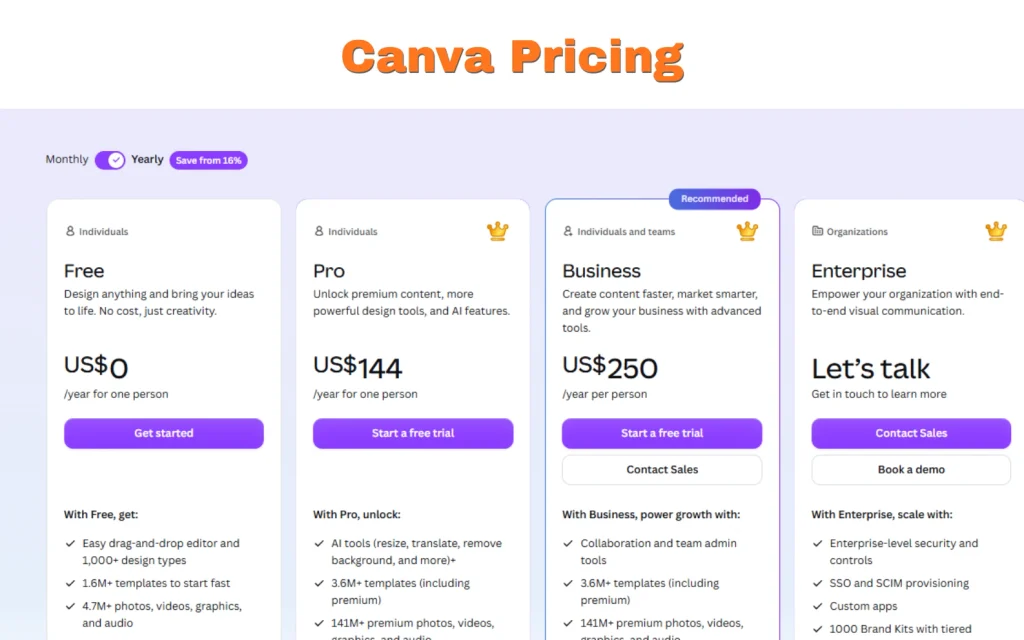
Canva offers a free plan and paid subscriptions, including Canva Pro. During my test, I could generate a design, edit it, and access common download formats without upgrading.
However, Canva reserves some premium assets, advanced download options, and additional AI capabilities for eligible paid plans. Check Canva’s official pricing page for the latest information.
Which Free Plan Offers Better Value?
Canva offered better value for my workflow. I preferred its AI design output and could access PNG, JPG, and PDF download options.
Piktochart’s free plan remains useful for trying its dedicated infographic generator, but its two PNG downloads felt restrictive for repeated projects.
Piktochart vs Canva: Pros and Cons
Piktochart Pros and Cons
Pros
- Clean, beginner-friendly dashboard
- Dedicated AI infographic generator
- Outline refinement and color palette controls
- Useful for structured informational graphics
Cons
- Two PNG downloads on the free plan
- AI shortened my requested title
- Some export features require a paid subscription
Canva Pros and Cons
Pros
- Better AI-generated result in my test
- Easy editing and navigation
- Wide range of design categories
- PNG, JPG, and PDF options in my free workflow
- Convenient for banners and general graphics
Cons
- Some features and assets require payment
- AI-generated content still needs manual review
- Advanced chart features were not part of my test
Which Tool Should You Choose?
For Students and Teachers
I would choose Canva for students and teachers who create posters, educational graphics, presentations, and other classroom materials. Its interface felt approachable, and I preferred its output for my educational infographic prompt.
Piktochart is also worth trying when the main goal is to turn information into a structured infographic.
For Marketers and Content Creators
Canva is my preferred option for everyday marketing graphics, banners, and social media content. I found its editing process convenient, especially when working on different design formats.
Piktochart remains an option for marketers who primarily need informational graphics.
For Infographics and Reports
Piktochart provides a dedicated infographic creation workflow. Canva combines infographic creation with a broader design workspace.
For complex reports and data-heavy graphics, I recommend testing the relevant chart tools in both platforms before deciding.
Final Verdict: Is Piktochart Better Than Canva?
After testing both platforms, Canva is my overall winner. I preferred its AI-generated design, found editing easier, and appreciated the flexibility of its free download options.
Piktochart still impressed me with its beginner-friendly dashboard and dedicated AI infographic generator. However, its shortened AI-generated title needed correction, and its free download allowance felt limited.
My recommendation: Choose Canva if you want a versatile design platform for everyday content creation. Consider Piktochart if you prefer a focused infographic workflow.
Whichever tool you choose, review AI-generated text and visuals before publishing.
Frequently Asked Questions
Is Piktochart better than Canva?
It depends on your needs. Piktochart provides a focused infographic workflow, while Canva performed better in my AI design and editing test.
Is Piktochart free to use?
Yes. Piktochart offers a free plan with AI credits and limited PNG downloads.
Is Canva free?
Yes. Canva offers a free plan with design tools, templates, and common export options. Some advanced features require payment.
Can Canva create infographics?
Yes. I used Canva AI to generate an educational infographic from written instructions.
Which is better for infographics?
In my test, Canva produced the design I preferred. Piktochart remains worth considering for its dedicated infographic generator.
Which is easier for beginners?
Both were beginner-friendly. I found Canva more convenient for editing and general design work.
Can I download designs for free?
Yes, within each platform’s restrictions. Canva offered PNG, JPG, and PDF options in my test, while Piktochart’s free plan included two PNG downloads.