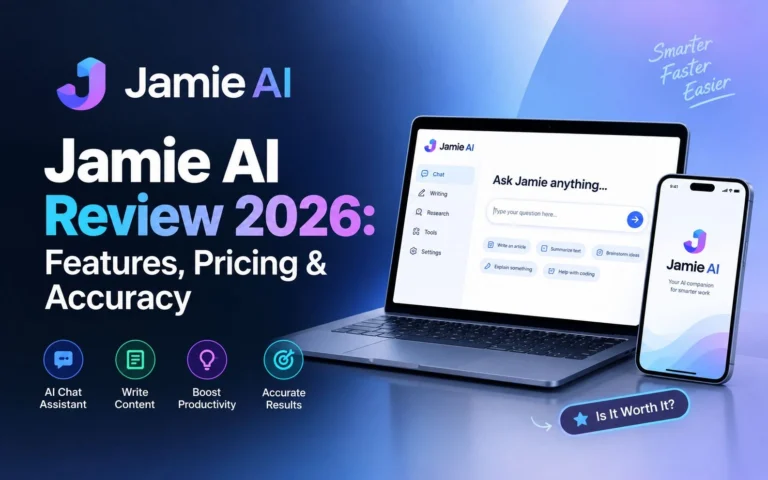
Meetings eat up more time than most teams admit. Between scribbling notes and half-listening to the person talking, something always gets lost. That’s the exact problem Jamie AI aims to solve—a bot-free meeting assistant that records, transcribes, and summarizes your calls without appearing as an extra participant.
I tested Jamie AI hands-on: installed it, ran recordings, and tested its transcription, speaker identification, summaries, action items, and Ask Jamie feature through real conversations. Here’s what I found during my testing.
What Is Jamie AI?
Jamie is an AI-powered meeting assistant that captures audio directly from your device instead of joining calls as a visible bot. It works with platforms such as Zoom, Google Meet, and Microsoft Teams, and it can also be used for in-person conversations.
Once a meeting ends, Jamie generates a full transcript, a summary, and a list of action items. It also includes a built-in chat feature called Ask Jamie, which lets you ask questions about what was discussed without having to read through the entire transcript.
Jamie AI features include transcription, speaker identification, meeting summaries, action items, Ask Jamie, and other meeting-management capabilities.
Setup and Installation
Getting started with Jamie AI was refreshingly simple. I downloaded the installer and ran it, and the app opened automatically after a short wait. I didn’t encounter any download or installation errors.
Signup was equally straightforward. Google login and email/password options were available, so I could create an account without going through a complicated setup process.
User Interface and Ease of Use
Jamie’s interface looks clean and modern, without unnecessary clutter. The recording screen keeps things simple, with a clear microphone selector and an obvious button for starting a meeting.
For beginners, this is useful because there isn’t much of a learning curve. After selecting the microphone, I could start the meeting with a single click.
Overall, I found the interface well-organized and easy to understand during my testing.
Recording Experience
Before starting a meeting, Jamie lets you select your preferred microphone. During my testing, the recording process was simple and didn’t involve a complicated setup.
I also didn’t encounter any complicated permission prompts during my initial recording test. After selecting the microphone, I was able to start the meeting directly.
For testing, I recorded around two minutes of audio using a prepared script to evaluate Jamie’s recording and transcription capabilities.
After clicking Stop, Jamie redirected me directly to the transcription screen. The transition was smooth, and I didn’t experience any unnecessary waiting during this test.
Jamie AI Transcription Accuracy
- This is where I paid particularly close attention because transcription accuracy is one of the most important parts of a meeting assistant.
- During my normal English speech test, Jamie transcribed almost everything correctly, including names spoken during the recording.
- There was one clear mistake, though: Jamie transcribed “Jimmy AI” as “Gemini AI.” This happened while I was recording through the device’s built-in speaker without headphones, so the recording setup may have contributed to the mix-up.
- Apart from that error, the transcription remained accurate during my test, including when there was background noise.
Overall, Jamie AI transcription accuracy was strong in my hands-on test. I found only one noticeable word-recognition error during the approximately two-minute recording.
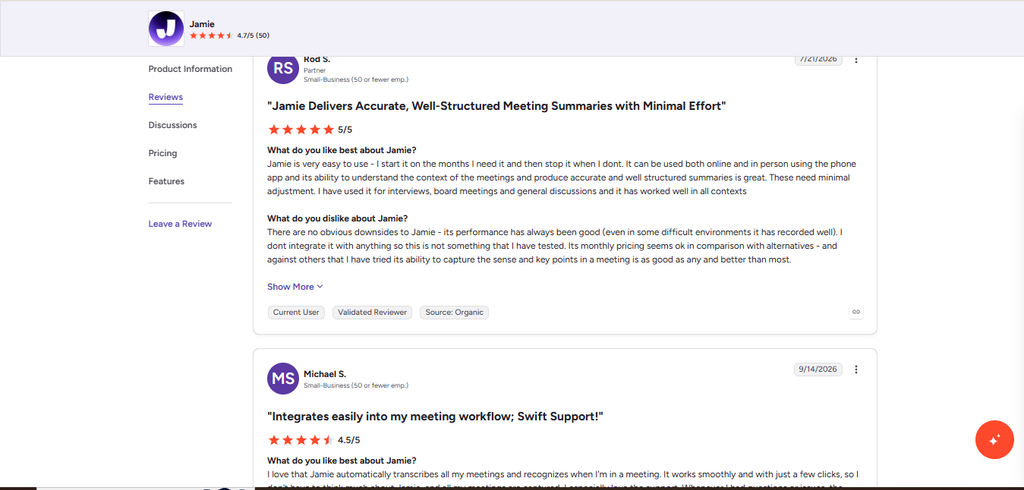
Independent user reviews on G2 rate Jamie 4.7 out of 5 from 50 reviews, with users frequently praising the bot-free approach and summary quality.
Speaker Identification
- Jamie successfully separated speakers during my multi-person meeting and correctly attributed the conversation to the different participants.
- I tested this during a real meeting with multiple speakers, and Jamie made it easy to follow who said what in the resulting transcript.
- For a meeting with several participants, this made the transcript much easier to read and understand.
Meeting Summary and Action Items
After the meeting, Jamie generated a summary that captured the main topics discussed during the conversation.
The action items were also identified successfully. Jamie picked up the tasks and deadlines discussed during the meeting and presented them clearly.
This meant I didn’t have to manually go through the entire transcript to find the follow-up tasks.
Ask Jamie: The Built-In Q&A Feature
Ask Jamie lets you interact with your meeting transcript using questions, similar to chatting with an AI assistant.
I tested it with two questions.
Q1. What were the main topics discussed in this meeting?
Jamie correctly identified the main topics, including the AI evaluation and website homepage launch discussion, along with relevant details from the conversation.
I then asked:
Q.2 What action items were discussed in the meeting?
Jamie correctly identified the homepage design, content preparation, Thursday review, and Friday deadline. Both answers closely matched the conversation, showing that Ask Jamie could retrieve specific information from the meeting rather than simply providing a generic response.
Jamie AI Pricing
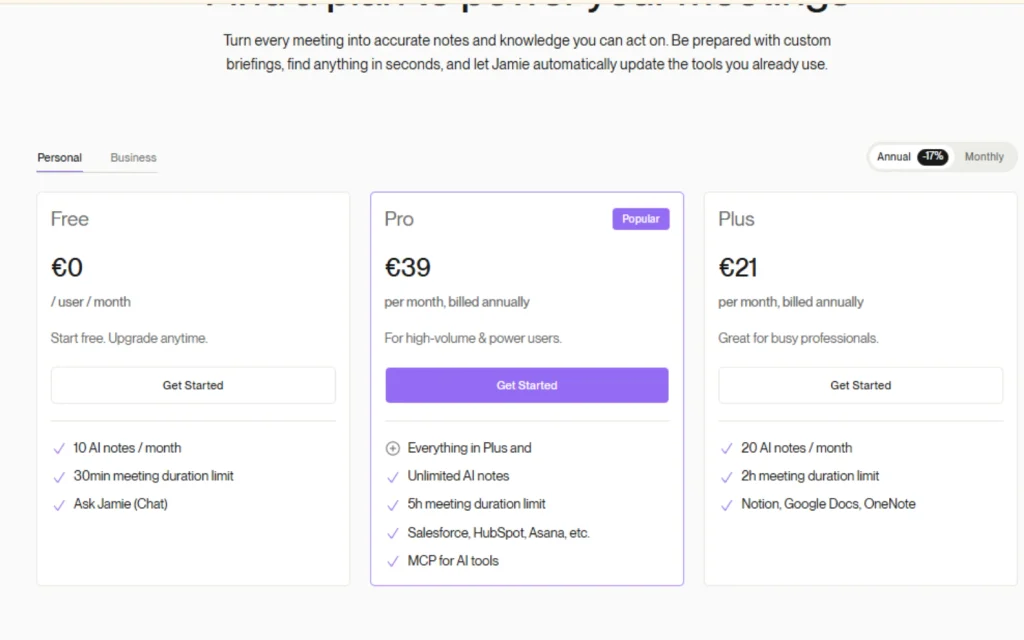
Jamie AI pricing follows a freemium structure with multiple plans.
Jamie AI Alternatives
If Jamie’s pricing doesn’t fit your budget or workflow, there are other AI meeting assistants worth comparing.
| Tool | Bot or Bot-Free | Free Plan |
|---|---|---|
| Otter.ai | Bot-based | 300 transcription minutes/month, 30 minutes per conversation |
| Fireflies | Bot-based | Free tier with limits |
| Granola | Bot-free | Free plan available (25 meetings total) |
| Fathom | Bot (bot-free option added) | Unlimited recordings, unlimited transcripts, no time limit |
Jamie AI Pros
- Beginner-friendly setup—installation, signup, and starting a recording were straightforward during my testing.
- Strong transcription and speaker identification—Jamie performed well with normal English speech and successfully separated speakers in a multi-person meeting.
- Useful AI meeting insights—summaries, action items, and Ask Jamie produced results that closely matched the actual meeting content.
Jamie AI Cons
- Occasional transcription errors—the “Jimmy AI” to “Gemini AI” mix-up shows that individual words can still be misinterpreted under certain recording conditions.
- Pricing can add up—the free tier has usage limits, while frequent users may need a paid plan.
FAQs
Is Jamie AI free to use?
Yes, Jamie offers a free plan with limited monthly usage. The free plan is suitable for users who only need to record a smaller number of meetings. Check the current pricing page for the latest limits and features.
How does Jamie AI work without a meeting bot?
Jamie captures audio directly from your device instead of joining the call as a visible participant. This means you don’t need to add a separate Jamie bot to your meeting.
Is Jamie AI safe for recording and transcribing meetings?
Jamie provides security and privacy information for its service, but you should review its current privacy policy and security documentation before recording sensitive or confidential conversations.
How accurate is Jamie AI for meeting transcription?
In my test, Jamie was highly accurate with normal English speech. I noticed one word-level error when I was recording through the device’s speaker without headphones, while the rest of the approximately two-minute recording was transcribed accurately.
What is Jamie AI best used for?
Jamie is useful for individuals and teams that want meeting transcripts, summaries, speaker identification, and action items without adding a visible bot participant to their calls.
Final Verdict
Jamie AI delivers on its core promise: it provides meeting transcripts, speaker identification, summaries, action items, and AI-powered questions without requiring a visible meeting bot.
My hands-on testing showed that the setup is simple enough for beginners, transcription was highly accurate overall, and the speaker identification and meeting-summary features performed well. Ask Jamie was also useful for quickly retrieving specific information from the conversation.